Our starting point
Start with Claude
Made by Anthropic. The one we use in our live sessions.
Selected

Free guide · 01
An introductory guide to choosing a tool, getting it on your devices, and trying one quick thing.
You don't need to be an expert to get started. You need one account, one small task, and 10 minutes. Start free. Pick one tool. Ignore the rest for now.
Part 1
Our starting point
Made by Anthropic. The one we use in our live sessions.
SelectedWorks just as well
Made by OpenAI. The exercise works exactly the same here.
Also worksNot sure? Choose Claude; we use it in our live sessions. The exercise works the same way in ChatGPT, and switching later costs nothing.
Choosing a plan
Start free. The free version is enough to learn the basics and get started. Once you're set up, start building a habit of using the tool, and you'll learn more and get better with every use.
Consider paying when the free version regularly slows you down or blocks something you want to do.
01 · When to pay
02 · What most people need
Choose the tool that best fits the work you do most often.
Paid plans are usually about $20 a month.
03 · What we do
Catey, Allie, and Katie have paid versions of both Claude and ChatGPT. We like having the models check each other's work.
Most of our household systems run through Claude. ChatGPT is usually better with images.
Part 2
Start here
The browser version is the simplest place to start.
Same account
Part 3
Do this next
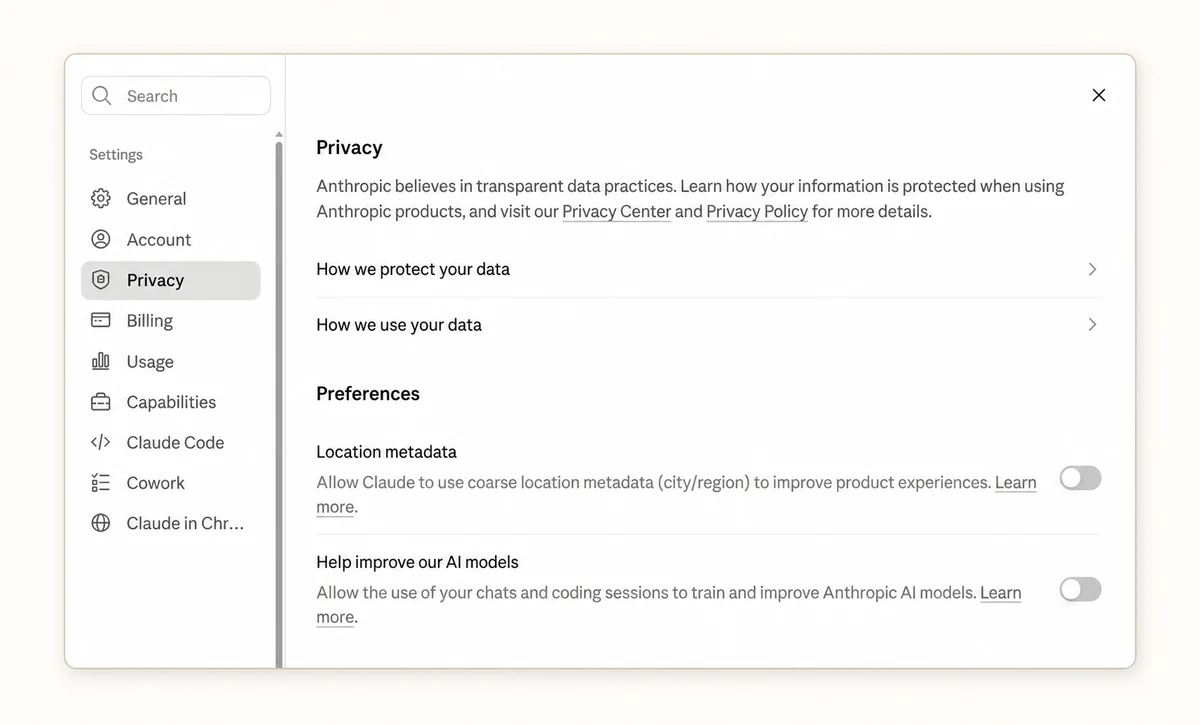
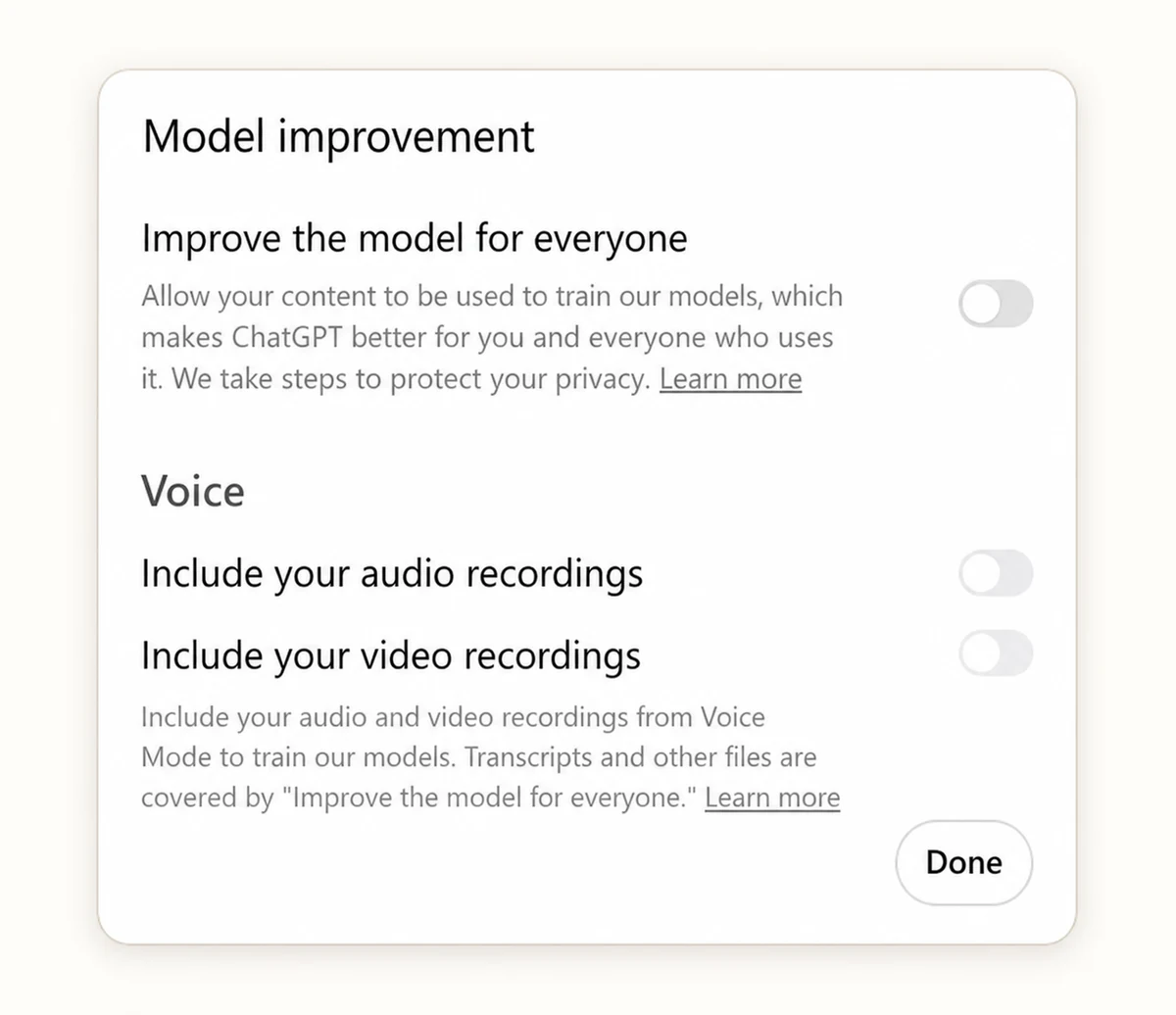
This setting controls whether the info you put into your AI tool is used to improve the models. However, even by opting out you still need to follow general guidelines to protect your privacy.
Stop new chats from being used in future model training, subject to any safety-review exceptions set by Anthropic or OpenAI.
Guarantee the security of sensitive personal data or remove the privacy risks associated with sharing info through an online service.
Claude
Open your Profile → Settings → Privacy. Under Help Improve our AI models, turn the setting off.
ChatGPT
Open Profile → Settings → Data Controls → Improve the model for everyone and switch it off. This must be done through the web browser, as the setting can't be changed in the desktop app.
Menu steps checked August 25, 2026. See OpenAI's data controls FAQ and Anthropic's model-improvement setting guide.
General guidelines
Practical rules of thumb on what to share (and what not to)
Meal plans, trip ideas, birthday planning, email drafts, calendar management, and general research are usually fine starting points.
A child's name, school, schedule, and medical detail can build a profile even when no single detail feels revealing. Be especially careful with children's information and other sensitive specifics.
Part 4
Think of prompting as giving a smart friend the context they need. You don't need perfect wording.
Say what you're trying to do, any constraints (time, budget, diet, location), and what you want back: a list, email, options, or steps.
Grammar isn't critical; context is. Tell it who the answer is for, ask it to take a useful role (“think like an interior designer”), or share an example of the tone or result you want.
Tell it: “If you're not sure, say so instead of guessing.” Ask what information it needs and tell it to identify assumptions or gaps.
If the first answer isn't great, try: “Make this simpler.” “Give me a few options.” “Here's what I mean.” “Turn this into an email.” Going back and forth is normal.
Accuracy
AI will get things wrong. That isn't a reason to stop; it's a teaching moment. Correct it clearly and keep going.
Treat AI output like a first draft from a smart but overconfident friend. Before you rely on it, verify important dates, numbers, names, links, quotes, and claims with a trustworthy source.
“Is what you just told me true? Provide sources.”
Part 5
Start with something small you need to get done today, or pick one of the ideas below. Use AI even when it feels slightly inefficient at first, and watch how the skills compound as you practice and get more comfortable. You don't have to begin with a life system to see benefits in your day-to-day.
Try 1
Tap the microphone near the message box. If you don't see one, use the dictation button on your phone's keyboard. Speak normally. Grammar isn't the assignment.
Try this
I'm going to give you a messy brain dump. Organize it into Today, This Week, and Later. Flag anything with a deadline. Draft any email or text I need to send, but do not send anything.
Try 2
Copy and paste a school email or newsletter, or add a screenshot after removing anything you don't want to share.
Try this
What requires action? What deadlines matter? What should go on my calendar? Tell me if anything is unclear.
Try 3
Take a photo of the food you have in your fridge, or type a short list. Don't worry about making the refrigerator presentable. It has seen worse.
Try this
Here's what's in my fridge. Give me one dinner I can make tonight in under 30 minutes with what I have. Include simple steps and tell me what you can't identify.
Your first ten minutes
Choose a tool, create a free account, put it on your phone, and try one exercise. Then correct the answer once. When you're ready for more, the global instructions guide shows you how to save the preferences you discover, and the calendar prompt is your first project for real efficiency gains. New guides and 101 session dates land on the Join us page first; leave your email there.
This is guide 1 of 3. Next: Setting global instructions.
Join the list and get the free Family AI Starter Kit: practical AI for family life, from three parents who test everything in their own households first.